

Choose the meet
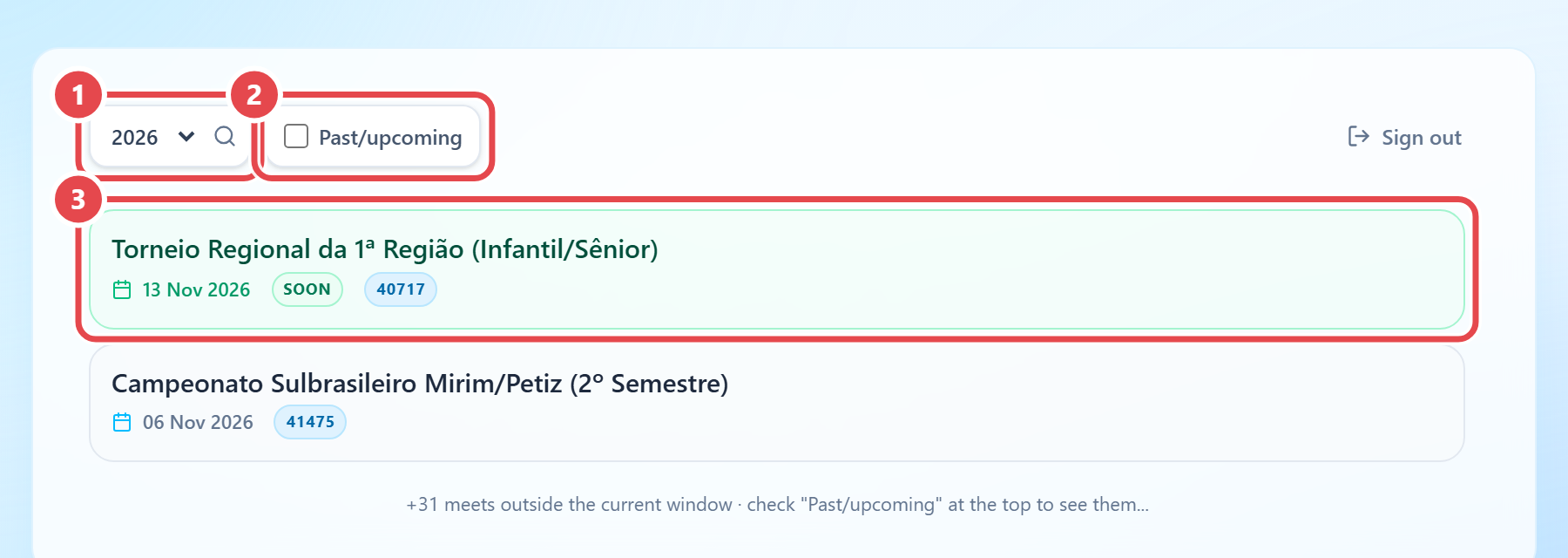
After you sign in to the app (see Installation), the first screen is the meet list. It shows meets from the last and next 7 days, plus every meet already downloaded on this computer.
- Tick Past/upcoming at the top to see meets outside that window.
- When your account manages more than one organization, an organization filter (All) appears, to show only one federation’s or organization’s meets.
- The Ongoing and Soon badges show each meet’s status.
A meet that has not been downloaded cannot be opened. The first step is always to download it to this computer, as described next.
In the installed app, accounts allowed to import also see the Imports menu, which brings in meets from external sources (for example, Import CBDA Piscina (API)). See Imports for details.