

Making results official
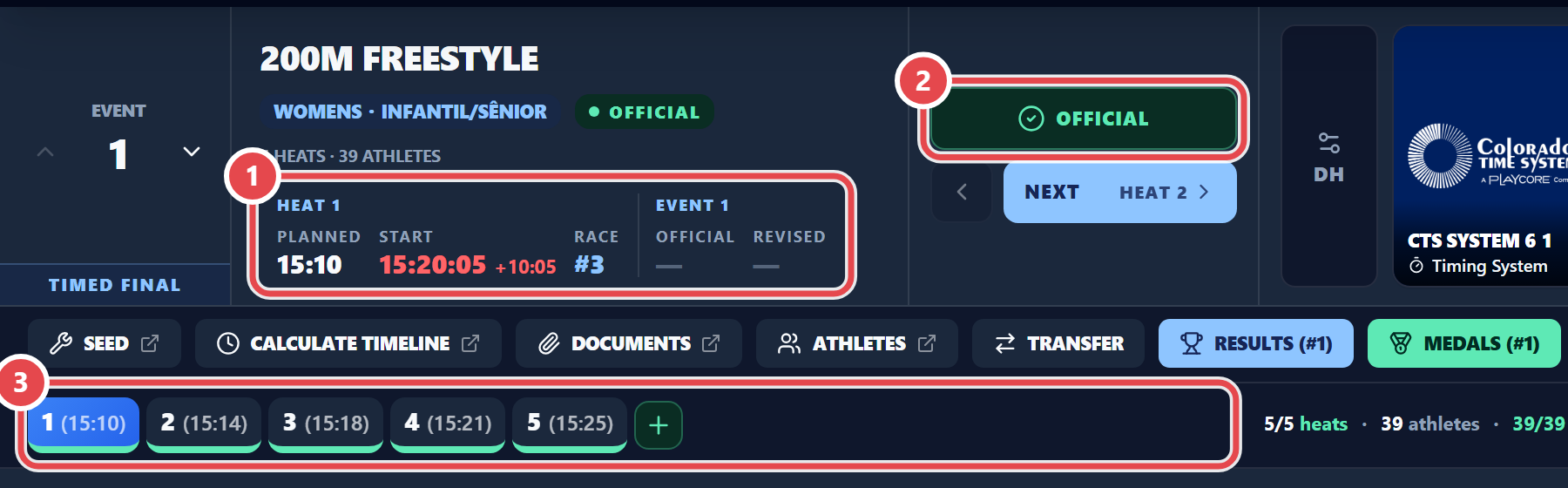
- Click Set Heat N as Official.
- If a lane has a time but is marked
DNSorDNF, the app stops you. Fix that lane. - If the heat has errors or warnings, Review · event X, heat Y opens. Choose Go back and fix (Esc) or Make official anyway (Enter). The review only points things out: nothing is blocked.
- If seeded lanes have no time, the app asks whether to mark them
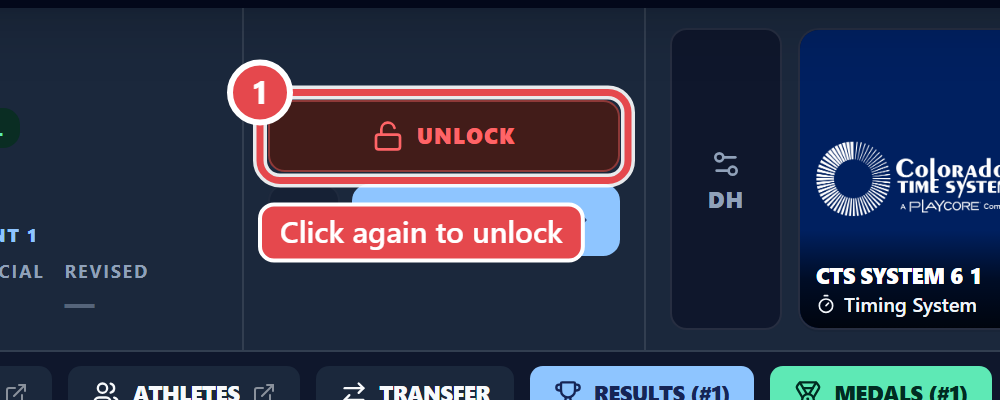
DNS. If no lane has a time, the option is Nobody swam — set as official (all DNS). - The heat now shows Official: the button above the tabs turns green and the tab gets a green underline. To change it again, click Official: the button turns into Unlock; click it again.
When an event is official
Section titled “When an event is official”An event is official only when all its heats are official. With a fast heat, both halves count. Places in reports and on the website appear only once the whole class or event is official; until then you see —. The Results (#n) and Medals (#n) shortcuts stay partial until the last heat is official.